How to Set Up Dropfans in Telestars (With Video)
Step by step: connect Dropfans to Telestars, build a paid drop and send it in Telegram so fans can pay by card. Includes a video walkthrough and screenshots.
Dropfans Team
·6 min read
TL;DR
In Dropfans, generate a Telestars key (Vault → API Connect → Telestars) and paste it into Telestars under Settings → My App → Dropfans. Build a paid drop under Content → Paid drop, then send it from the Fan Inbox, a Script or an AI Offer by choosing Dropfans instead of Stars. The fan gets a blurred preview with an Unlock button and pays by card on Dropfans.
Step-by-step
How to set up Dropfans in Telestars
- 1
Open Paid drop in Telestars
In Telestars, go to Content → Paid drop and click Open Settings → My App.
- 2
Choose Dropfans under My App
Find Dropfans in the app list and click Configure app. No Dropfans account yet? Create one on the same screen.
- 3
Open API Connect in Dropfans
In your Dropfans dashboard, open Vault and click API Connect. Agencies switch to the right creator first.
- 4
Generate a Telestars key
Click Generate new key, choose Telestars and click Generate key for Telestars. Copy the key.
- 5
Paste the key into Telestars
Back in Telestars, paste the key (it starts with dpfn_) and click Connect.
- 6
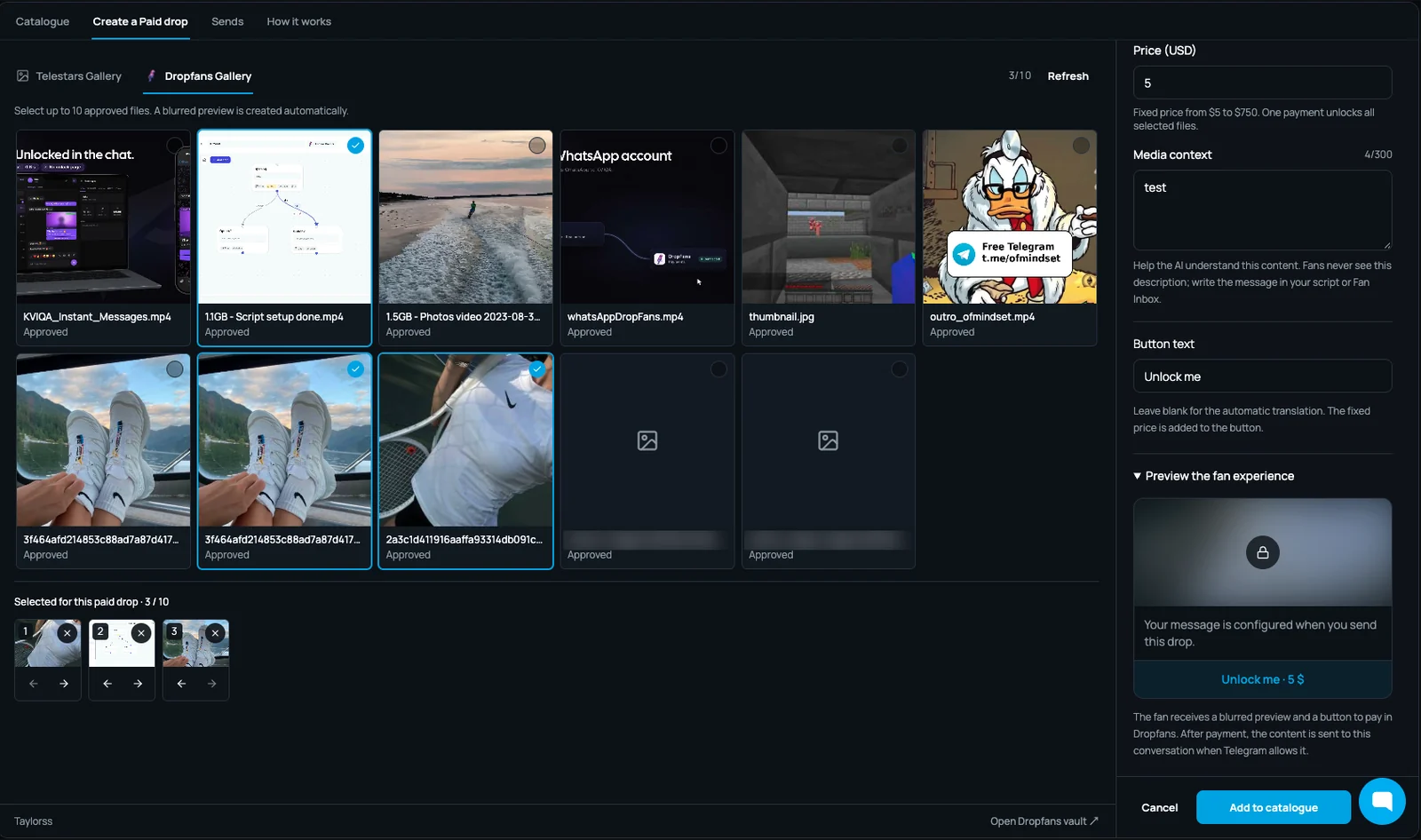
Build a paid drop
Under Content → Paid drop → Create a Paid drop, open the Dropfans Gallery, pick up to 10 approved files, set the price and button text, and click Add to catalogue.
- 7
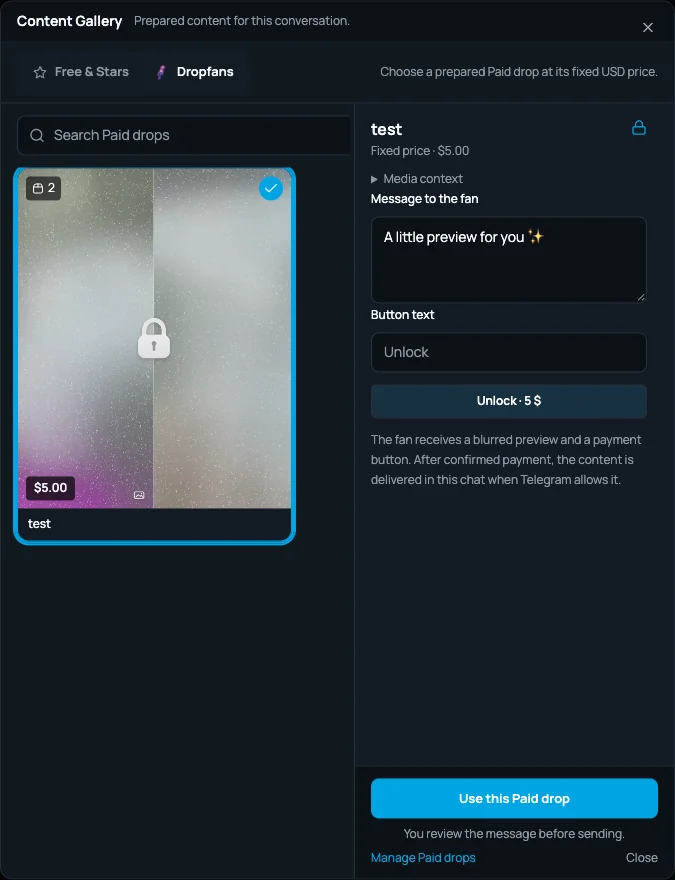
Send it to a fan
In the Fan Inbox, open the content gallery, switch to the Dropfans tab, choose your drop, write your message and click Use this Paid drop. Scripts and AI Offers work the same way.
This guide connects your Dropfans account to Telestars, builds your first paid drop and sends it to a fan, who can then pay by card. The one-minute video above shows all seven steps, and the screenshots below go through them one at a time with the same numbering.
Why add card payments at all? Telestars × Dropfans: Card Payments Next to Stars explains the partnership.
Before you start
- A Telestars account with your bot set up.
- A Dropfans creator account with your identity verified. If you don't have one, you can create it from inside Telestars (step 2).
- Some approved files in your Dropfans vault. Uploads are reviewed before they can be sold, so upload a few before you start.
Step 1: Open Paid drop in Telestars
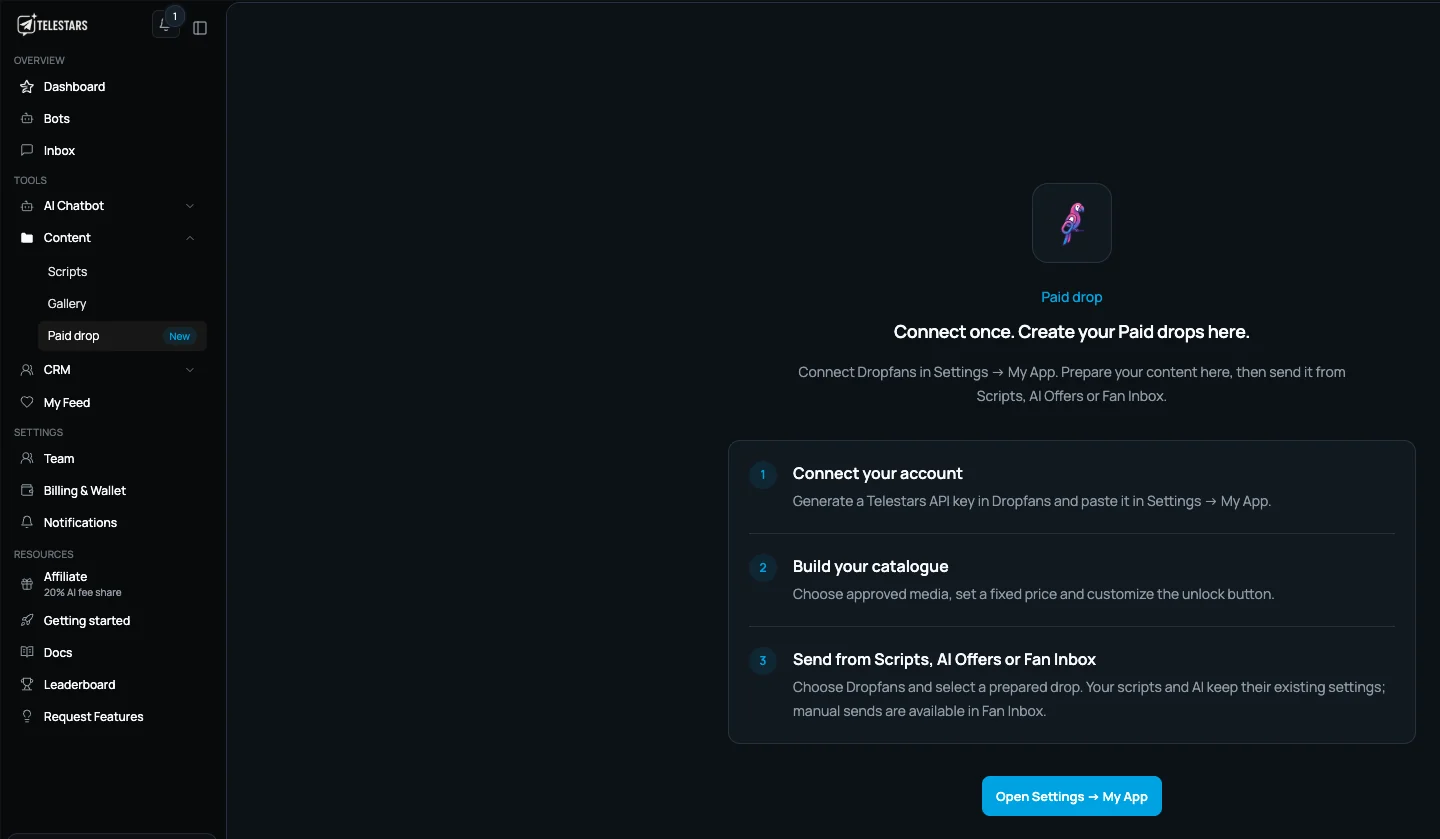
In the Telestars sidebar, go to Content → Paid drop. The first time, you'll see a "Connect once" screen with the three steps ahead of you. Click Open Settings → My App.
Step 2: Choose Dropfans under My App
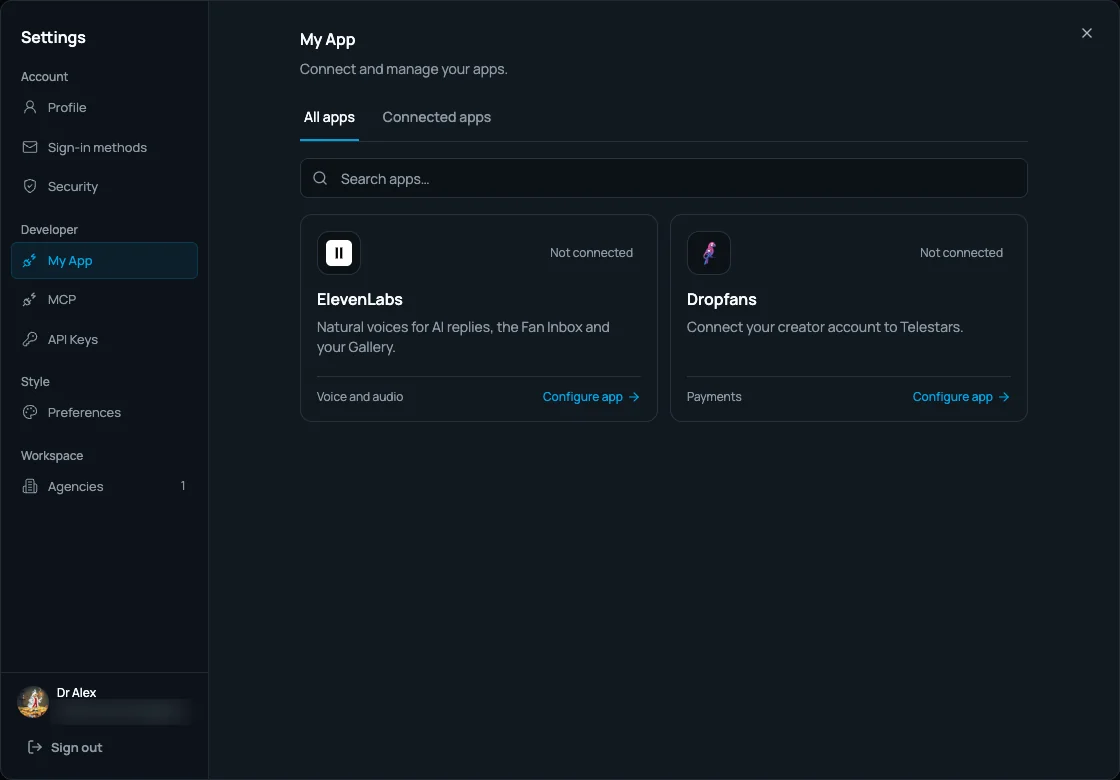
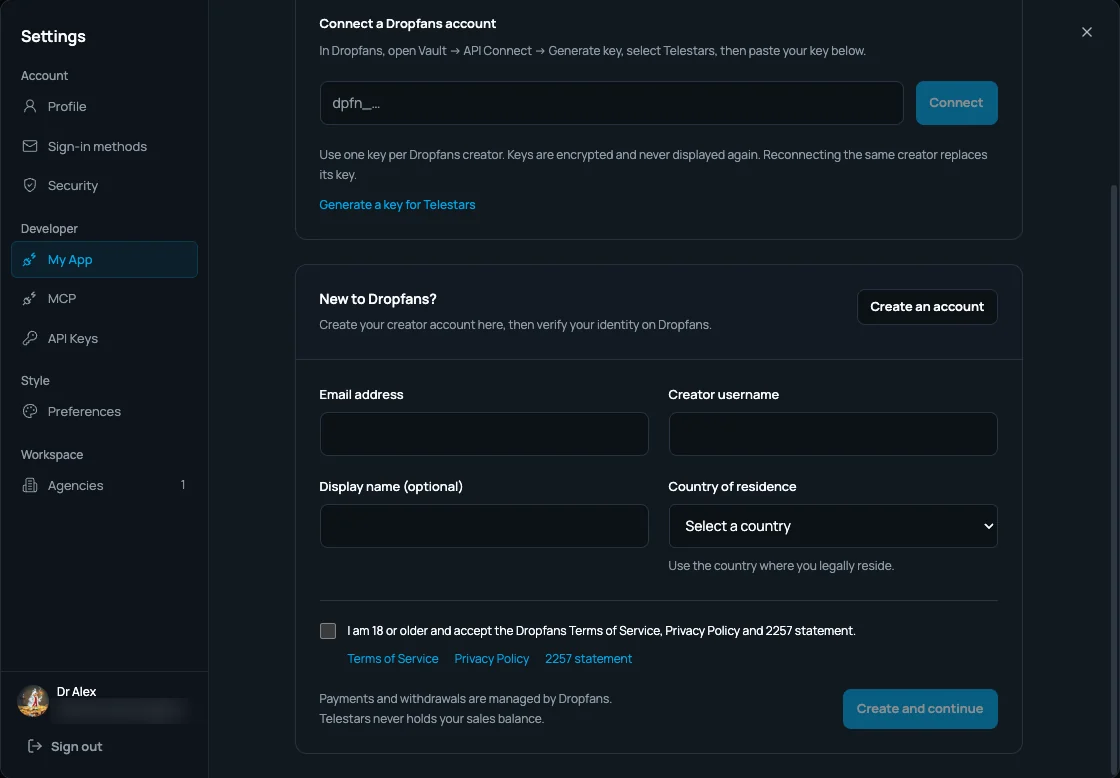
Under Settings → My App, find Dropfans and click Configure app.
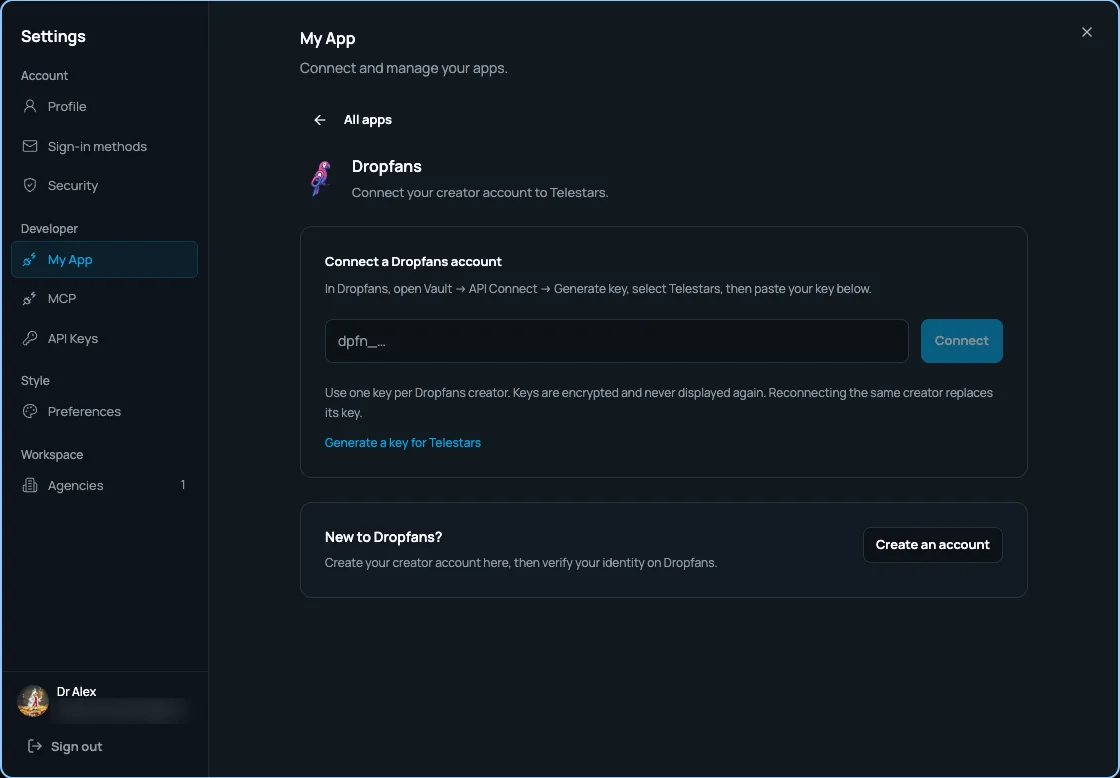
The Dropfans panel has two parts: a box to paste your key, and a New to Dropfans? section. Keep this tab open, because you'll need the key from Dropfans next.
No Dropfans account yet? Click Create an account, then fill in your email, creator username and country of residence and accept the terms. Then verify your identity on Dropfans. You can't sell until that's done.
Step 3: Open API Connect in Dropfans
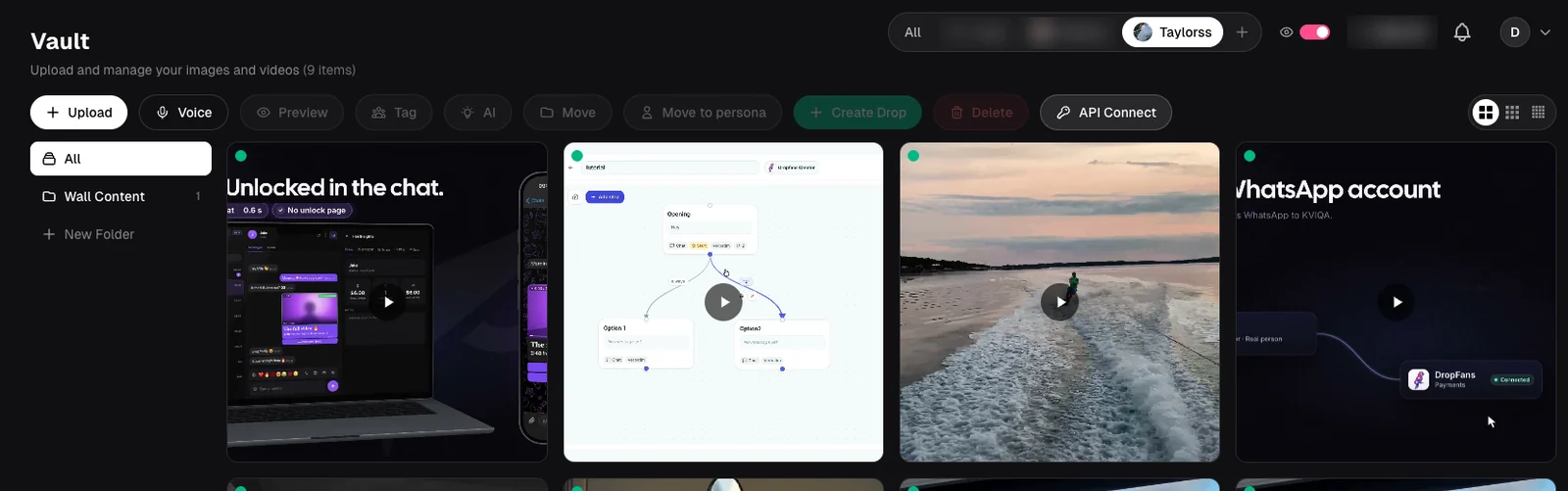
Open your Dropfans dashboard, go to Vault and click API Connect in the toolbar. If you run an agency, switch to the right creator in the top bar first, because each key belongs to one creator.
Step 4: Generate a Telestars key
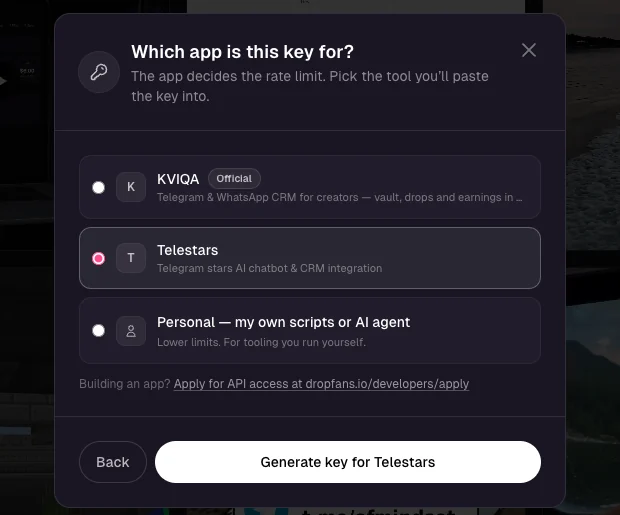
Click Generate new key (a creator with no keys yet lands on this step straight away), choose Telestars and click Generate key for Telestars.
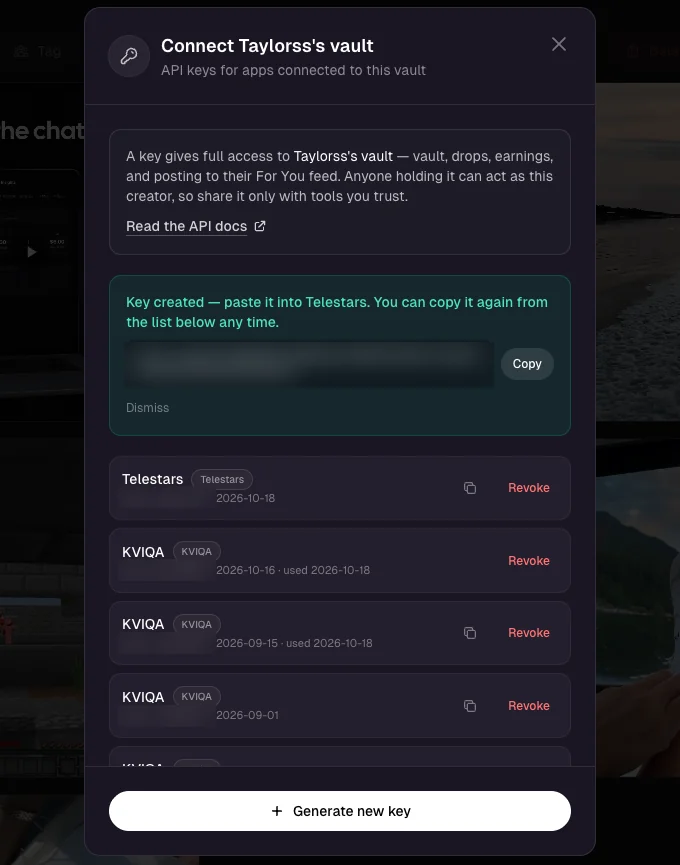
Click Copy. You can copy the key again from the list at any time, and revoke it there too.
Step 5: Paste the key into Telestars
Back in Telestars, paste the key (it starts with dpfn_) into the Dropfans panel and click Connect. Telestars stores the key encrypted and never shows it again. Connecting the same creator again replaces the key.
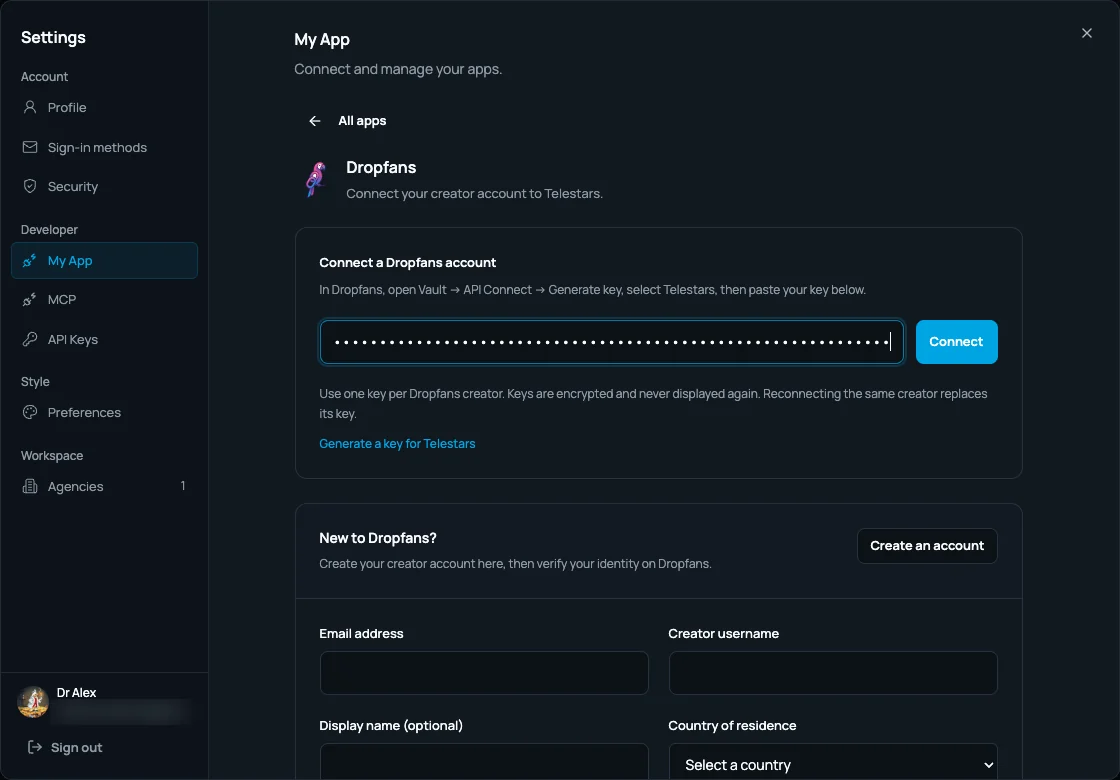
That's the connection done. Next, something to sell.
Step 6: Build a paid drop
Go to Content → Paid drop → Create a Paid drop and switch to the Dropfans Gallery tab. Your approved Dropfans files are listed there. Pick up to 10, and use the arrows to set their order.
Then fill in the drop details:
- Drop name. For you, not the fan.
- Price (USD). A fixed price from $5 to $750. One payment unlocks every file in the drop.
- Media context. A short description that helps the Telestars AI understand the content. Fans never see it.
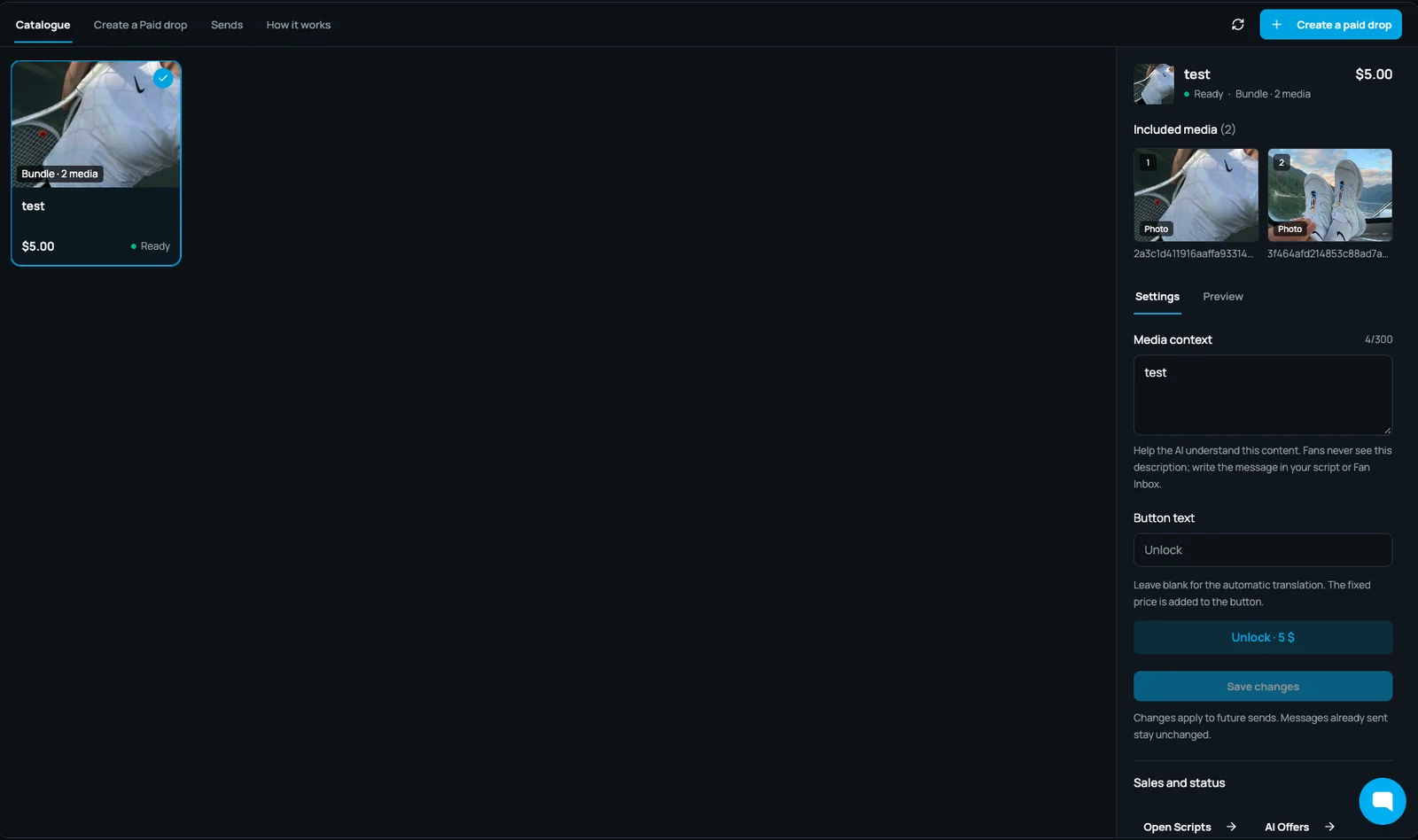
- Button text. For example "Unlock me". Leave it blank and Telestars uses its automatic translation. The price is added to the button either way.
Open Preview the fan experience to check it, then click Add to catalogue.
The drop now appears in your Catalogue marked Ready. You can change its media context and button text there at any time. Changes apply to future sends, and messages already sent stay as they are.
Step 7: Send it to a fan
Open a conversation in the Fan Inbox and open the Content Gallery from the toolbar under the message box. Switch from Free & Stars to the Dropfans tab and click your drop. Write the message the fan will see, check the button, then click Use this Paid drop. You review the message once more before it goes out.
The drop lands in the chat marked Awaiting payment. Telestars tracks the payment in the conversation, so you and your chatters can see when it sells.
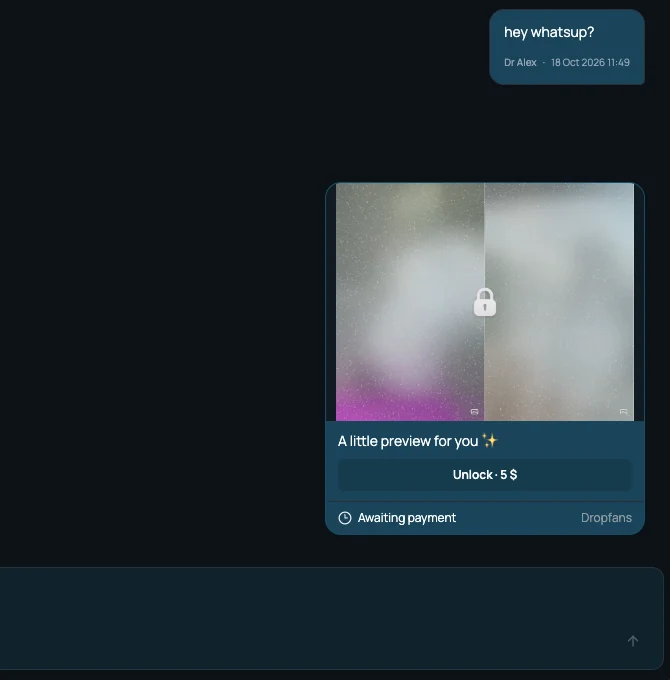
To sell automatically instead, open a Script or an AI Offer, choose Dropfans for the paid step and pick the drop. Everything else in your scripts and AI stays as it is.
What the fan sees
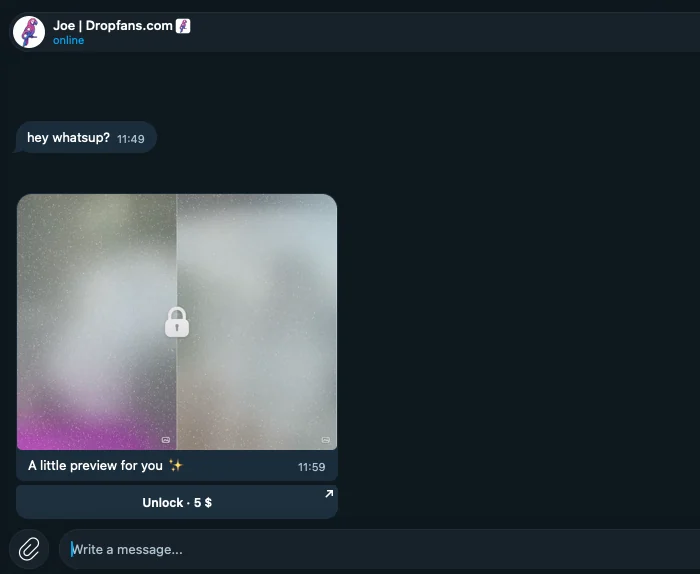
In Telegram, the fan gets a blurred preview of the drop, your message and an Unlock button with the price. Tapping it opens the Dropfans checkout in the browser, where they pay by credit or debit card, with no account needed. Once the payment is confirmed, Telestars delivers the content into the chat.
Tips
- Offer both. Card for fans without Stars and for bigger bundles, Stars for one-tap impulse buys. You choose per send, so test which works for your fans.
- Agencies: one key per creator. Generate each creator's Telestars key while you're switched to that creator in Dropfans.
- Keys are full access. If a key may have leaked, revoke it under Vault → API Connect and connect a new one.
- Files missing? They're probably still in review. Once they're approved, click Refresh in the Dropfans Gallery.
Get started
No Dropfans account yet? Sign up or create one from inside Telestars, verify your identity, and follow the steps above. Fees are the standard Dropfans ones: you keep 85% of your price, and fans pay a 10% service fee at checkout.
Stuck on a step? Email [email protected] for the Dropfans side, or ask in the Telestars community group for the Telestars side.
FAQ
Frequently asked
Why are my files missing from the Dropfans Gallery?▾
Only approved files can be sold. New uploads are reviewed on Dropfans first. Once a file is approved, click Refresh in the Dropfans Gallery and it appears.
Can I connect more than one creator?▾
Yes, with one key per creator. Agencies switch to each creator in Dropfans, generate a Telestars key for them and connect it in Telestars. Connecting the same creator again replaces their old key.
What if my key leaks?▾
Revoke it under Vault → API Connect in Dropfans and generate a new one. A key gives full access to that creator’s vault, drops and earnings, so treat it like a password.
What prices can I set?▾
Any fixed price from $5 to $750 per drop, and one payment unlocks every file in it. The fan pays a 10% service fee on top at checkout, and you keep 85% of your price.
Can I still sell with Stars?▾
Yes. For every paid Script step, AI Offer or Fan Inbox send, you choose Stars or Dropfans. Connecting Dropfans changes nothing about your Stars sales.
Does the fan need a Dropfans account?▾
No. The fan taps Unlock, pays by card on the Dropfans checkout and never has to sign up.
Written by
Dropfans Team
Creator Growth, Dropfans
The Dropfans team writes about creator monetization, pay-per-link selling, and the shift away from subscription platforms. Dropfans is operated by KVIQVIEW AB in Gothenburg, Sweden.
Start selling on Dropfans
Upload a file, set a price, share the link. Buyers pay and unlock instantly — no accounts required.
Get started — it's free →